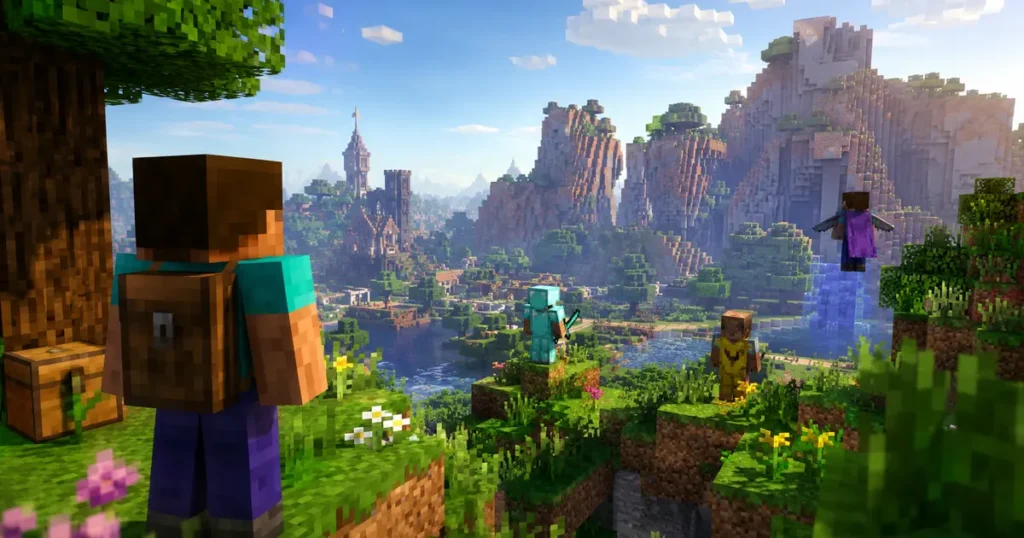

You spawn into a massive Minecraft server with three friends, everyone scatters to explore, and within ten minutes nobody knows where anyone else is. That used to mean spamming chat with coordinates. Now it means glancing at your screen.
The Locator Bar is Mojang’s answer to that exact problem. It is a HUD feature that shows you where other players are standing in a multiplayer world, even if they are behind a hill, underground, or three biomes away.
Here is a full breakdown of how it works, how to turn it on, and how to use it like a pro.
What Does the Locator Bar Do in Minecraft
The Locator Bar tracks nearby players and displays their position as a colored icon on your screen. It replaces the experience bar visually, sitting in that same strip near the bottom of your HUD.
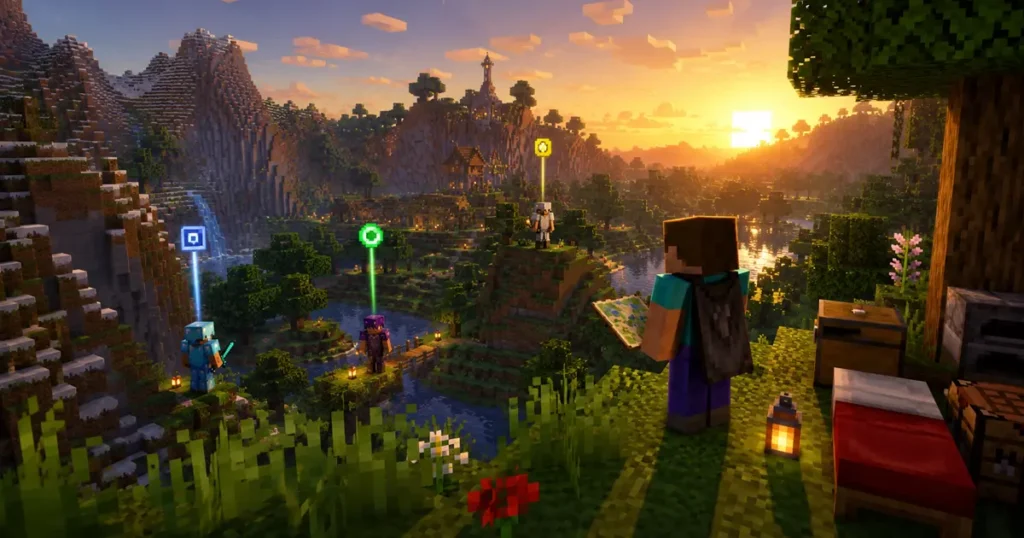
Each player shows up as a “waypoint.” As you move your camera, these waypoints slide left and right across the bar to match the direction that player is actually standing in relative to you.
It only works in multiplayer worlds. Solo survival or creative players will never see it appear, since there is no one else to track.
Why the Locator Bar Matters
Minecraft worlds get huge fast, especially once players start branch mining or building bases far from spawn. Before this feature, the only way to find a friend was asking them to type out coordinates or share a map.
The Locator Bar cuts that step out entirely. Server communities, SMPs, and Bedrock realms benefit the most, since groups can regroup after mining trips or PvP sessions without any extra communication.
When Does the Locator Bar Appear on Screen
The bar shows up in place of your XP bar, but only under specific conditions.
It stays hidden while you are gaining or losing experience points. It also disappears any time you have the anvil or enchanting table screen open. Once your XP settles or you close that menu, the bar comes back a few seconds later.
You also need at least one other nearby player for the bar to show anything. Playing alone in your own dimension, like a private mining tunnel with no one else around, means an empty bar.
How to Read Locator Bar Waypoints
Each waypoint icon tells you two things at a glance: direction and rough distance.
Waypoints only appear if the tracked player is within 120 degrees of where your camera is currently pointing. As they move around you, the icon slides across the bar to track them.
Distance changes the icon’s shape and size:
| Distance from player | Icon shown |
|---|---|
| 0–179 blocks | Large square |
| 179–230 blocks | Large circle |
| 230–281 blocks | Small square |
| 281+ blocks | Small circle |
If another player is significantly above or below you, an arrow appears on their icon too. This is especially useful in caves, ravines, or tall builds where vertical position matters as much as horizontal.
How to Turn On the Locator Bar
Java Edition
Java Edition controls the Locator Bar through a game rule. Server operators or world hosts can run this command:
/gamerule locatorBar trueSetting the value to false switches it off for everyone in that world.
Bedrock Edition
Bedrock Edition uses a setting called Player Waypoints instead of a command. You can find it inside your world settings menu, with two options: Everyone (default) and Off.
On both versions, only the host or a server operator can change this setting. Regular players cannot toggle it from their own personal options menu, even if they personally do not want to be tracked.
How to Hide From the Locator Bar
Not every player wants to be visible all the time. A few methods will keep your icon off other players’ bars.
- Sneak: Crouching automatically hides your waypoint from everyone else.
- Wear a mask: Equipping a mob head or a carved pumpkin keeps you hidden, though it takes up your helmet slot.
- Drink Invisibility: A Potion of Invisibility removes you from the bar completely while it lasts.
There is also a quirk built into the system itself. Approaching another player directly from behind can delay your icon showing up on their bar, even without using any of the tricks above.
Locator Bar vs Compass vs Maps
These three tools solve different problems, and none of them fully replaces the others.
A compass points toward one fixed location, like your world spawn or a placed lodestone. It cannot track a moving target.
Maps show terrain you have already explored, which helps with navigation but not with finding people in real time.
The Locator Bar is the only one of the three built specifically to track other players as they move. Most experienced multiplayer groups use all three together depending on the situation.
Community Tools That Improve the Locator Bar
Mojang’s version works well, but it does not give players much personal control over their own icon or tracking status. A few community-made tools fill that gap.
Player Locator Bars datapack: This datapack, created by a developer on Modrinth, adds features Mojang’s version is missing for Minecraft 1.21.4 and up. It lets players opt in or out of tracking at any time, pick their own waypoint color instead of leaving it random, and switch between different HUD styles. It works on vanilla worlds and only needs to be installed by the server host, so friends can join without installing anything themselves. You can download it directly from its Modrinth project page.
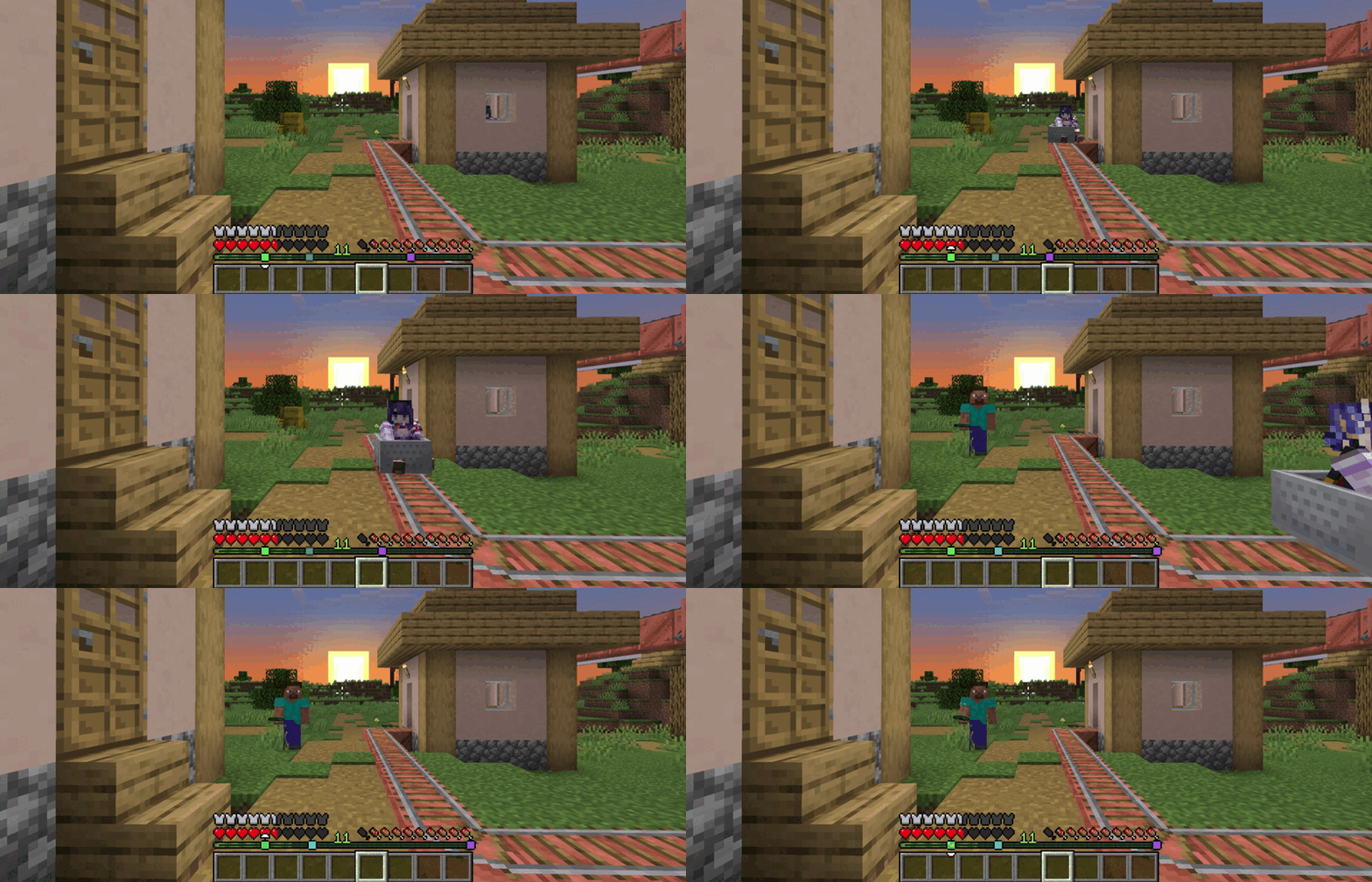
Locator Bar Neighbor Finder: Built by developer matdoesdev, this web tool shows you which other Java Edition players share your exact waypoint color. Since Minecraft only generates 16.7 million possible colors for hundreds of millions of accounts, plenty of players end up with an identical color by chance. A related open-source project called locator-bar-neighbors, hosted on GitHub by MelnCat, works the same way and lets anyone self-host the lookup server.
Which Minecraft Versions Support the Locator Bar
Bedrock Edition got the feature first, rolling it out through beta and preview builds before a full release. Java Edition followed with its own snapshot testing before the feature reached a stable version.
If you have updated your game and still do not see the bar, double check that you are running the latest release through your official launcher, since older versions do not include it at all.
Final Thoughts
The Locator Bar solves one of the most annoying parts of playing Minecraft with friends: actually finding each other. Once you get used to reading waypoint colors and icon sizes, it becomes second nature, and going back to a world without it feels like navigating blind.
Try it out during your next multiplayer session and see how much time it saves the next time your group splits up to mine, build, or explore.
Follow GamerUrge for more Minecraft guides, feature breakdowns, and gaming news as new updates roll out.