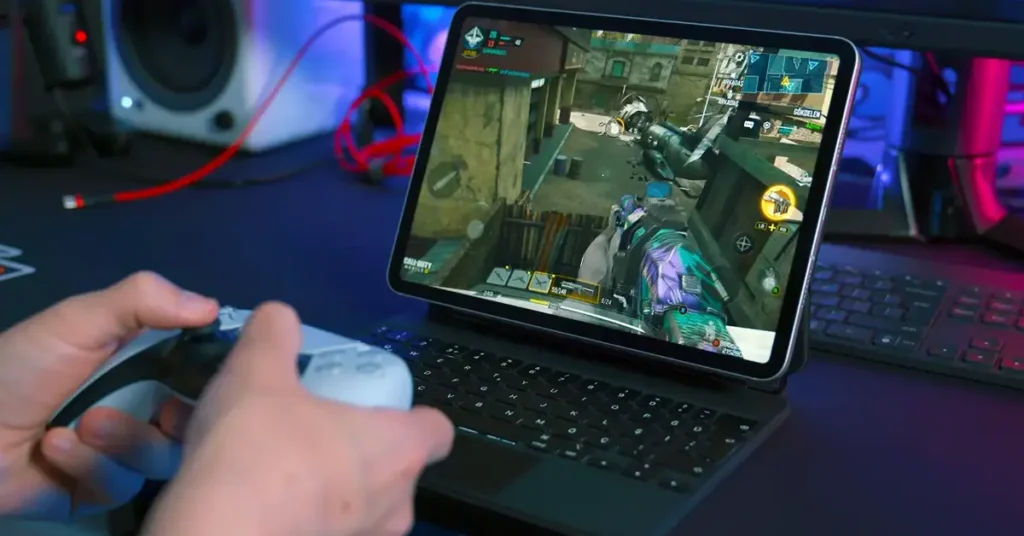

The DualSense controller is arguably one of Sony’s best innovations in recent years. With its haptic feedback, adaptive triggers, and sleek design, it’s no wonder PC gamers want in on the action. Good news: connecting your PS5 controller to your PC is surprisingly straightforward, whether you prefer wired or wireless options.
Why Use a PS5 Controller on PC?
Before we dive into the how-to, let’s talk about why you’d want to do this in the first place. The PS5 controller offers features that most PC controllers can’t match. The haptic feedback makes racing games feel more immersive, while the adaptive triggers add tension to shooting games. Plus, if you already own one for your PS5, why buy another controller?
According to Steam’s hardware survey data, controller usage on PC has been steadily climbing. Many games now offer native DualSense support, making the transition seamless for PlayStation users who game on multiple platforms.
Connecting via USB Cable: The Simple Route
This method works right out of the box with zero setup required. Seriously, it’s that easy.
Grab any USB-C cable (yes, the same one you use for your phone probably works). Plug one end into your controller and the other into your PC’s USB port. Windows will automatically detect the controller and install the necessary drivers.
You’ll know it’s working when the light bar on your controller glows. Most modern games will recognize the DualSense immediately. Steam, for instance, has built-in support that was added in early 2021, so you’re good to go for most titles in your library.
The wired connection offers the lowest latency, which matters if you’re playing competitive games where every millisecond counts. It also keeps your controller charged while you play, eliminating the dreaded “low battery” notification mid-match.
Going Wireless with Bluetooth
If you hate cables cluttering your gaming setup (and who doesn’t?), Bluetooth is your friend. Most modern PCs have Bluetooth built in, but if yours doesn’t, you can pick up a USB Bluetooth adapter for around $10 to $15.
Here’s how to pair your DualSense wirelessly:
First, put your controller into pairing mode. Hold down the PlayStation button and the Create button (that’s the small button to the left of the touchpad) simultaneously. Keep holding until the light bar starts flashing blue rapidly.
On your PC, open Settings and navigate to Bluetooth & devices. Click “Add device” and select Bluetooth. Your PC will scan for available devices, and “DualSense Wireless Controller” should appear in the list within a few seconds.
Click on it, and boom, you’re connected. The light bar will stop flashing and remain a steady color once pairing is complete.
One thing to note: Bluetooth connections can occasionally have minor input lag compared to wired connections. For single-player games, you won’t notice. For fast-paced multiplayer shooters, you might want to stick with the cable.
Using Steam for Enhanced Features
Steam isn’t just a game store, it’s actually the best way to get full DualSense functionality on PC. Valve has done impressive work supporting PlayStation controllers through their platform.
Launch Steam and go to Settings. Under Controller, select General Controller Settings. Make sure “PlayStation Configuration Support” is checked. This enables Steam to recognize and configure your DualSense properly.
With this enabled, many Steam games will utilize the DualSense’s unique features. Games like Death Stranding Director’s Cut and Spider-Man Remastered offer full haptic feedback and adaptive trigger support when played through Steam. It genuinely transforms the experience.
Third-Party Software Options
For non-Steam games or additional customization, you might want DS4Windows. Despite the name, this free software supports DualSense controllers and has been maintained by the community since 2014.
DS4Windows lets you remap buttons, adjust vibration intensity, and even make your DualSense appear as an Xbox controller for games that don’t natively support PlayStation controllers. It’s open-source software that’s trusted by thousands of PC gamers worldwide.
Download it from the official website or GitHub page, extract the files, and run the program. It’ll guide you through initial setup, which takes about two minutes.
Troubleshooting Common Issues
Controller not recognized? Try a different USB port. USB 3.0 ports (the blue ones) sometimes cause detection issues with controllers. Switching to a USB 2.0 port often fixes this immediately.
If Bluetooth pairing fails, unpair any other Bluetooth controllers first. Your PC might be getting confused if multiple controllers are trying to connect simultaneously.
For games not responding to inputs, check if Steam’s controller configuration is conflicting with the game’s native support. Sometimes disabling PlayStation Configuration Support in Steam actually fixes problems with certain titles.
The Bottom Line
Connecting your PS5 controller to PC opens up a world of gaming possibilities. Whether you go wired for competitive gaming or wireless for couch comfort, the setup process takes just minutes. With Steam’s excellent support and the controller’s impressive feature set, there’s never been a better time to make the switch.
Your gaming sessions just got a significant upgrade, enjoy those adaptive triggers on PC.