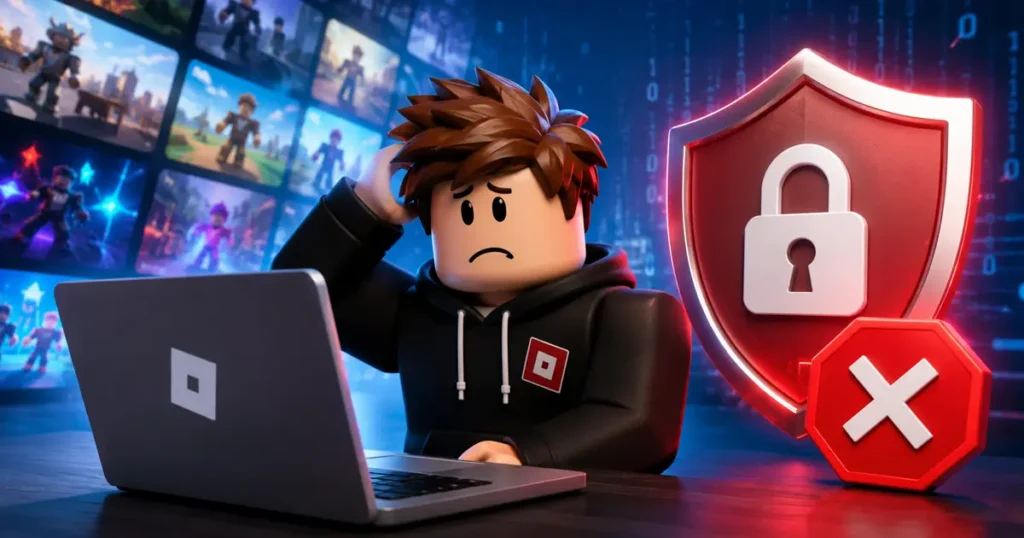
You boot up Roblox, click on your favorite game, and get hit with this message instead:
“Authentication Failed. Error Code: 403. An error was encountered during authentication. Please try again.”
Frustrating? Absolutely. But here’s the thing: this error is way more common than you think, and in most cases, it’s fixed in under five minutes.
This guide covers every cause and every working fix for Roblox Error Code 403 across PC, mobile, browser, and Xbox.
What Is Roblox Error Code 403?
Error Code 403 is an authentication error. It means Roblox received your request to connect or load a game, but rejected it before letting you in.
This is not the same as being banned. You’re not blocked from Roblox permanently. The server just couldn’t verify your identity or your connection properly, so it shut the door on you.
The official Roblox support page describes it simply: error code 403 occurs when the Roblox client app launched from the website fails to initialize properly.
It can show up on PC, browser, mobile, or even Xbox. The cause changes depending on your setup, but the fixes are mostly the same across all platforms.
Also read: Roblox Error Code 288 Explained: Easy Fixes That Actually Work
What Causes Roblox Error Code 403?
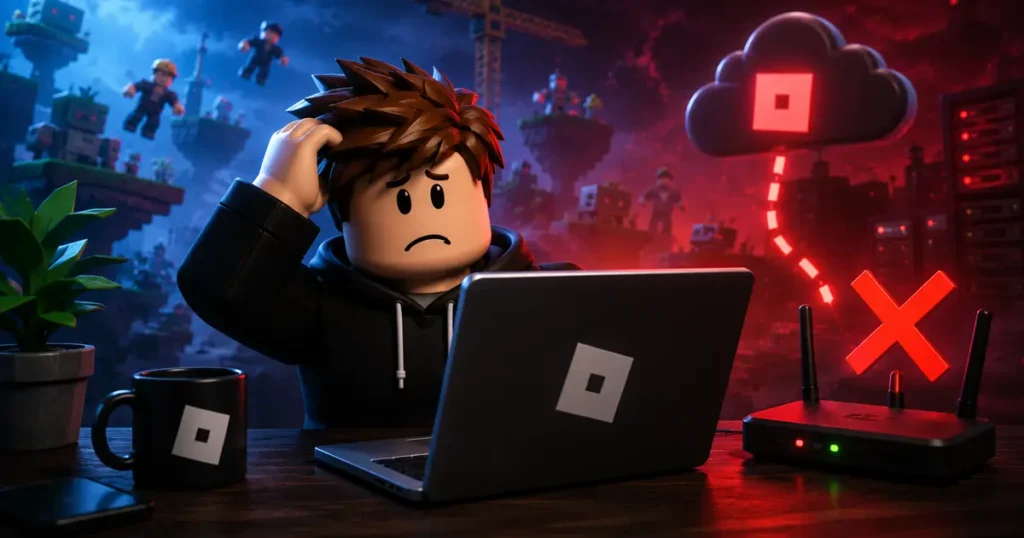
There is not one single reason this error shows up. Several different things can trigger it.
Corrupted login token. Roblox keeps you signed in using a session token. If that token goes bad or expires weirdly, the platform won’t recognize your account. Sign out and back in usually fixes this immediately.
VPN or proxy running in the background. This is the most common cause. VPNs change your IP address, and Roblox’s security system can flag that as suspicious. The error shows up almost instantly when a VPN is active.
Firewall or antivirus blocking Roblox. Security software sometimes treats Roblox connections as suspicious traffic. It blocks the app from reaching the servers, which triggers the 403.
Old or corrupted cache files. Roblox stores session data and temporary files locally. Over time, these files get corrupted and cause authentication failures.
Bad DNS settings. If your DNS cache has outdated or incorrect records for Roblox’s servers, the connection breaks before authentication even starts.
Multiple accounts logged in at once. Being signed into Roblox on several devices or browsers at the same time can cause authentication conflicts.
MSI Afterburner or RivaTuner (RTSS). This one surprises a lot of people. The companion tool RivaTuner Statistics Server can interfere with Roblox and cause the 403 error when it’s running overlays in the background.
Roblox servers are down. Sometimes the problem is not on your end at all. If Roblox’s servers are having issues, nothing you do on your device will fix it.
How to Fix Roblox Error Code 403
Work through these fixes in order. Most people solve it within the first three steps.
1. Check Roblox Server Status First
Before changing any settings, go to status.roblox.com and check if Roblox’s servers are up.
If there’s an active outage or maintenance window, no fix on your device will help. You just have to wait it out. If the servers show green, move on.
2. Sign Out and Sign Back In
This is the fastest fix and it works more often than you’d expect.
Open the Roblox app, tap the three dots on the left side of the screen, scroll down, and hit Log Out. Then sign back in with your account details.
This forces Roblox to generate a fresh session token, and if a corrupted token was behind the error, you’ll be back in the game within seconds.
3. Restart Your PC, Router, and Modem
A full restart clears temporary network glitches and resets your connection from scratch.
Shut down your computer completely. Unplug both your modem and router from the wall. Wait 30 seconds. Plug the modem back in first and give it about 60 seconds to reconnect, then plug in the router. Once everything’s back online, relaunch Roblox.
A surprising number of 403 errors disappear after this step.
Also read: Roblox to Require Facial Verification for Chat by 2026
4. Clear Roblox Cache
On Windows, do a full manual clear. Open Command Prompt by pressing Win+R, typing CMD, and hitting Enter. Then type:
cd AppData\LocalPress Enter, then type:
rmdir /s RobloxPress Enter and type Y when it asks you to confirm. Reinstall Roblox after this.
On mobile, go to your device Settings, find the Roblox app, tap Storage, and hit Clear Cache.
On Mac, open Finder, go to Go > Go to Folder, type ~/Library/Caches/, and delete the Roblox folder from there.
5. Turn Off Your VPN or Proxy
If you have a VPN running, disable it before opening Roblox. VPNs change your IP address, which can get flagged by Roblox’s authentication system.
If Roblox works after turning off the VPN, that was your problem. You can try switching to a different VPN server location if you need one running, but some VPN IP ranges are permanently blocked by Roblox.
6. Whitelist Roblox in Your Firewall and Antivirus
Your security software might be blocking Roblox without you knowing.
On Windows, open Windows Security, go to Firewall and Network Protection, and add Roblox as an allowed app on both Private and Public networks.
For third-party antivirus tools, go into the settings and add Roblox to the exceptions or whitelist list. Don’t turn off your protection permanently, just make sure Roblox is not being blocked.
Note that big Roblox updates sometimes change the app’s file path, so you may need to whitelist it again after a major update.
7. Flush Your DNS and Switch DNS Servers
Open Command Prompt as an administrator and run these three commands one at a time, pressing Enter after each:
ipconfig /flushdnsnetsh winsock resetnetsh int ip resetRestart your PC after running these.
If the problem continues, switch to a different DNS server. Google DNS is the fastest and most reliable option. On Windows, go to Network Settings, find your Wi-Fi or Ethernet adapter, and set the DNS to:
- Preferred: 8.8.8.8
- Alternate: 8.8.4.4
Cloudflare’s DNS (1.1.1.1) also works well. On mobile, tap your connected Wi-Fi network and update the DNS field manually.
8. Close MSI Afterburner and RivaTuner (RTSS)
If you use MSI Afterburner for GPU monitoring or FPS overlays, this one’s worth trying.
Look for the RivaTuner Statistics Server icon in your system tray (bottom-right corner of your screen). Right-click it and choose Exit. Also close MSI Afterburner if it’s open. Then relaunch Roblox.
RTSS specifically is known to interfere with Roblox’s authentication process when overlays are active.
9. Try a Different Network
Switch to a mobile hotspot and try loading Roblox from there.
If it works on mobile data but not on your home Wi-Fi, the issue is with your router, your ISP, or another device on the same network interfering with the connection, not your Roblox account.
If you’re on school or work Wi-Fi, those networks often block gaming platforms entirely. Get off that network and try again.
10. Run SFC and DISM (Windows Only)
Corrupted Windows system files can sometimes prevent Roblox from authenticating properly.
Open Command Prompt as administrator and run:
sfc /scannowOnce that finishes, run:
DISM /Online /Cleanup-Image /RestoreHealthThese commands scan and repair corrupted system files. Restart your PC after both commands finish.
11. Reinstall Roblox
If nothing else has worked, a clean reinstall almost always does it.
Uninstall Roblox from Settings > Apps > Installed Apps on Windows. Then manually delete leftover files from AppData\Local\Roblox using the Command Prompt steps from the cache section above. On Mac, drag Roblox to the Trash and delete the Roblox folder from ~/Library/Caches/.
Download a fresh copy of Roblox directly from roblox.com or your device’s app store. This removes all corrupted files and gets you running the latest version from a clean start.
12. Contact Roblox Support
If you have tried every fix above and nothing has worked, reach out to Roblox Support.
When you contact them, include your username, your device and OS version, and a screenshot of the exact error message. The more detail you give upfront, the faster they can pin down the issue. Response times are usually within a couple of business days.
Also read: How to Fix Roblox Error Code 9007: Service Instances Unavailable
Is Error Code 403 the Same as a Ban?
No, not necessarily. A 403 error does not automatically mean your account is banned or restricted.
If you are worried about a ban, check your Roblox account notifications and email for any moderation messages. If there is nothing there and your account looks normal, the 403 is almost certainly a connection or authentication issue rather than any action taken against your account.
Platform-Specific Tips
Browser users: If the error only shows up in one specific browser, clear that browser’s cookies and cached data for roblox.com, then sign in again. Extensions like ad blockers or privacy tools can strip request headers and trigger 403 responses.
Xbox users: Sign out and back in on the console, clear the Xbox system cache from Settings, and reinstall Roblox from the Microsoft Store if the error keeps coming back.
Mobile users: The error often pops up after switching accounts or opening the app after a long gap. Clear the app cache from your device settings and sign back in fresh.
Fix Roblox Error 403 Today
Getting a 403 on Roblox feels worse than it is. In the vast majority of cases, signing out and back in, clearing the cache, or disabling a VPN is all it takes to get back in.
If the issue is on Roblox’s end, the only real fix is waiting for them to sort it out on their side.
Bookmark this page in case the error comes back after a future update. And if you found a fix that worked for you that’s not on this list, drop it in the comments below so other players can try it.