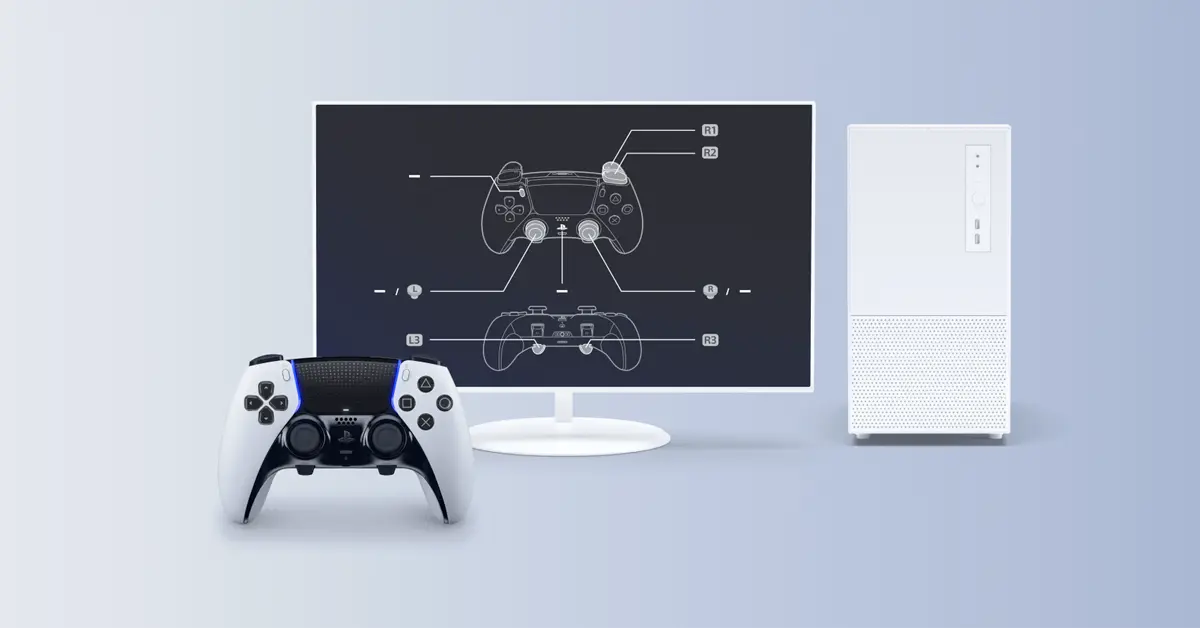
Sony didn’t hold back when they built the DualSense Edge. Think of it as the “pro” version of the regular PS5 controller: swappable sticks, back buttons, customizable profiles, adjustable triggers – basically, it’s the controller you buy when you want the absolute best.
But here’s the part a lot of people don’t realize: you don’t have to keep it chained to your PlayStation 5. With just a little setup, the DualSense Edge works on PC, Mac, and even your phone or tablet. Whether you’re into Steam, Apple Arcade, or cloud streaming on the go, the Edge can follow you there.
Let’s break down how to actually get it working across devices, what features carry over, and where you’ll run into limits.
Why Bother Using It Beyond the PS5?
If you’re already used to the DualSense Edge, switching back to a “basic” controller feels like a downgrade. The tactile triggers, precise sticks, and back buttons give you more control in fast-paced games. And since most of us juggle multiple gaming platforms these days, it makes sense to have one controller that can handle them all.
Sure, you won’t always get the same PS5-level experience – adaptive triggers and fancy haptics are hit-or-miss outside of Sony’s ecosystem, but even with those caveats, the DualSense Edge is still a top-tier controller for PC, Mac, and mobile gaming.
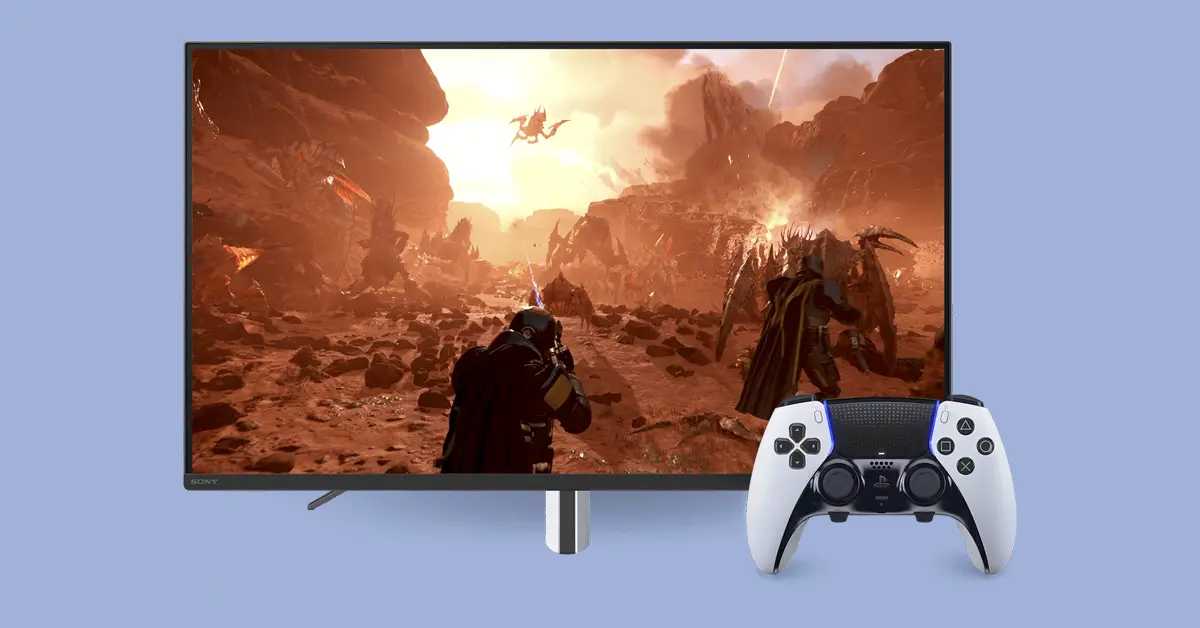
How to Use the DualSense Edge on Windows PC
Method 1: Plug It In (USB-C)
The easiest way to use the DualSense Edge controller on PC is with a cable.
- Grab the USB-C cable that came with your controller.
- Plug it into your PC.
- Windows should recognize it right away.
- If you’re playing through Steam, head to Steam > Settings > Controller > General Controller Settings and tick “PlayStation Configuration Support.”
That’s it, you’re good to go. Wired mode also has the lowest latency, which is a fancy way of saying “your inputs register instantly.” For competitive shooters or racing sims, that’s huge.
Method 2: Go Wireless (Bluetooth)
Want to ditch the cable? Here is how you can pair it via Bluetooth:
- Hold down the PS button + Create/Share button until the light bar flashes.
- On your PC, go to Settings > Bluetooth & devices > Add device.
- Select Wireless Controller from the list.
- Once connected, the light bar should stay on, and you’re ready to play.
Wireless is convenient, but keep in mind: some advanced features (like the fancy haptic feedback and adaptive triggers) may not work over Bluetooth. For casual gaming, though, it’s fine.
Extra Tools for PC Gamers
- PlayStation Accessories App (Windows): This is the official Sony app that allows you to manage profiles, remap buttons, and update firmware. An essential item for anyone who is serious about using the DualSense Edge on a PC.
- Steam Input: With Steam’s controller support, remapping buttons for individual games is simple. Some games even allow you to use the touchpad or gyro.
- Third-Party Software: If you want more customization or want to use the DualSense Edge to simulate an Xbox controller for games that don’t support PlayStation layouts, there are apps like DualSenseX. If necessary, use them, but start with official tools.
How to Use the DualSense Edge on Mac
Apple has quietly gotten a lot better at supporting game controllers, which means the Edge works surprisingly well on macOS.
USB-C Connection
Just plug the controller into your Mac with a USB-C cable. macOS should recognize it instantly. You can test inputs in System Settings > Game Controllers.
Bluetooth Connection
- Put the controller in pairing mode (PS + Share until the light flashes).
- On your Mac, open System Settings > Bluetooth.
- Select Wireless Controller and you’re done.
What You Get (and Don’t Get)
- Works: Apple Arcade, cloud services like GeForce Now and Xbox Cloud Gaming, and even PS Remote Play.
- Limited: Advanced haptics, adaptive triggers, and the built-in mic/speaker. Don’t expect the full PS5 experience here.
Still, for casual Mac gaming or cloud streaming, the DualSense Edge is way more comfortable than a keyboard.
How to Use the DualSense Edge on Mobile Devices
On Android
- Open Settings > Bluetooth.
- Put the controller into pairing mode (PS + Share).
- Tap Wireless Controller when it shows up.
- Open your favorite game or cloud app (Xbox Game Pass, GeForce Now, or PS Remote Play).
On iPhone/iPad
- Go to Settings > Bluetooth on your device.
- Put the Edge in pairing mode.
- Tap Wireless Controller when it appears.
- Test it with Apple Arcade, Remote Play, or any supported iOS game.
Mobile Limitations
- Most mobile games only recognize basic inputs.
- Adaptive triggers and advanced haptics? Don’t count on them.
- Remote Play may give you some vibration feedback, but it won’t feel like the full console experience.
That said, pairing the DualSense Edge contoller with a phone is perfect for cloud streaming on the go.
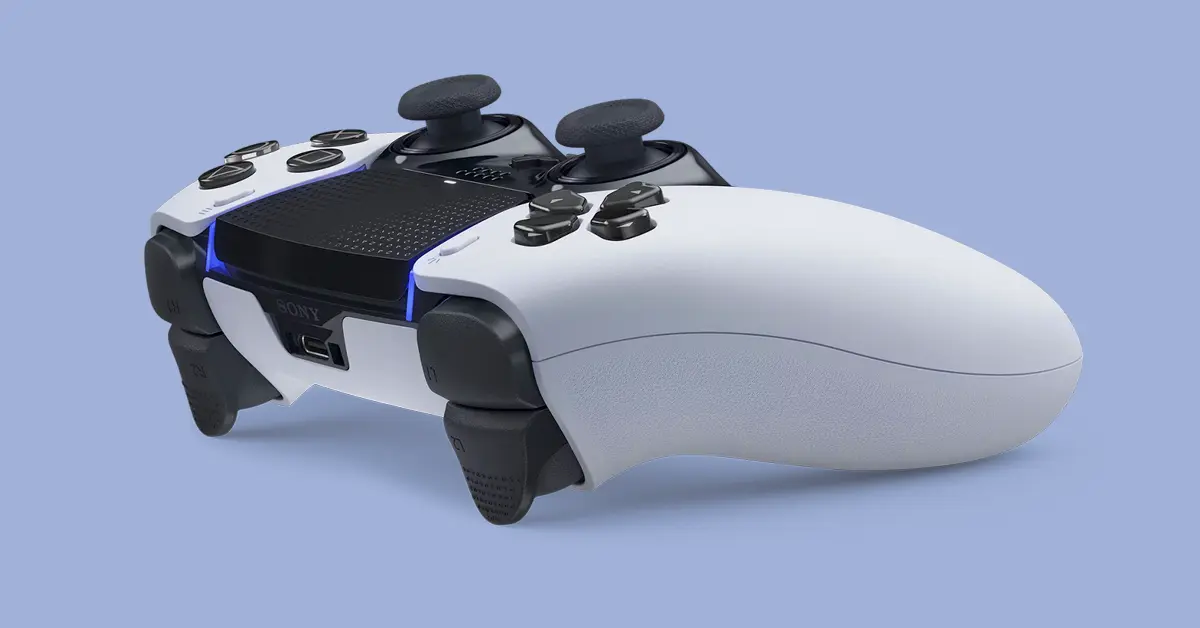
Profiles, Firmware, and Customization
Here’s a little pro tip: set up your controller profiles on your PS5 first. Those saved profiles carry over when you connect the Edge to PC, Mac, or mobile. You can switch between them with the profile button even if you’re not on a console.
Also, keep your controller firmware updated. Either plug it into your PS5 or use the PlayStation Accessories app on Windows. Updated firmware keeps everything running smoothly across devices.
Troubleshooting Common Problems
Won’t Pair?
- Use a paperclip to press the tiny reset button on the back of the controller.
- Put it back into pairing mode and try again.
Bluetooth Lag or Disconnects
- Move closer to your device.
- Disconnect other Bluetooth devices that might interfere.
- If the lag is unbearable, just go wired.
Games Not Recognizing the Controller
- Run the game through Steam with controller support enabled.
- Check the game launcher’s settings, some require you to manually turn on controller support.
- As a backup plan, use third-party apps like DualSenseX to emulate an Xbox controller.
No Haptics or Adaptive Triggers
That’s normal outside of PS5. A few PC games support them, but most don’t. If you want the full immersive features, stick with a wired connection on PS5 or supported PC titles.
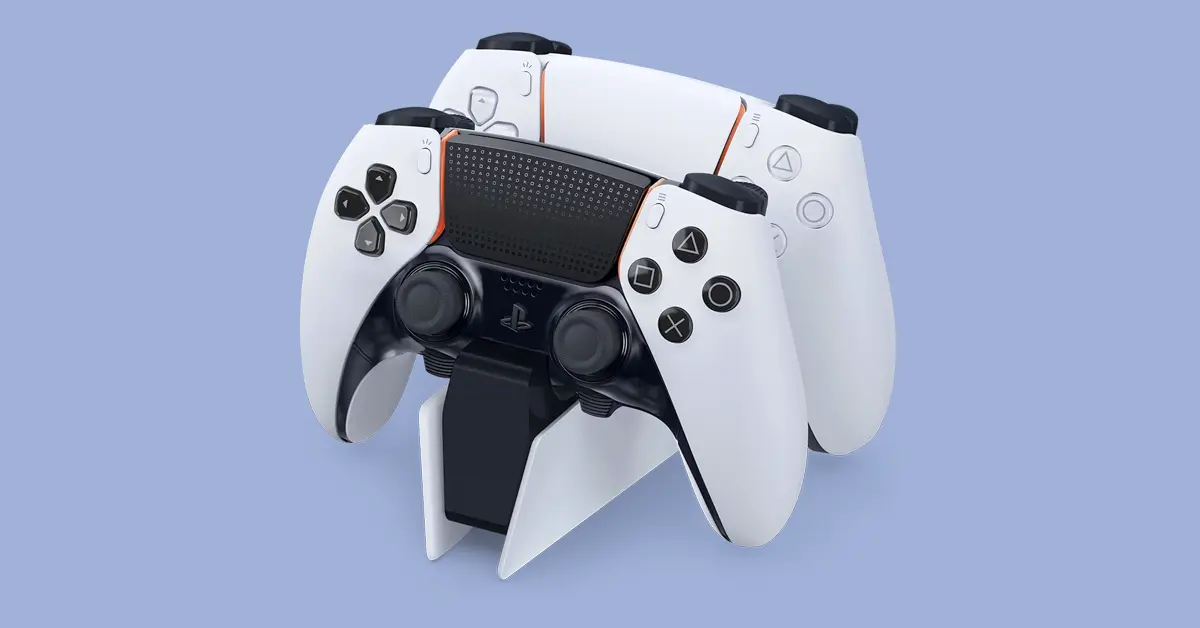
Pro Tips for Gamers Who Switch Devices
- Keep a USB-C cable in your bag, it’s your “fix everything” tool.
- Steam is your friend. Even non-Steam games can be added as shortcuts to unlock better controller support.
- Profiles save time. Once you’ve got a setup you love, store it on the controller so you can switch instantly.
- Remember: the Edge’s biggest strengths (triggers, haptics, audio features) shine brightest on PS5. On other platforms, it’s still excellent, just not as magical.
Final Thoughts
The DualSense Edge was built with the PS5 in mind, but it doesn’t have to stay there. On PC, it’s a strong all-around controller — especially when paired with Steam and Sony’s official app. On Mac, it gets the job done for Apple Arcade and streaming. And on mobile, it’s a lifesaver for cloud gaming sessions.
Will you get every single feature everywhere? No. Haptics and adaptive triggers are still mostly locked to PS5, with a few exceptions on PC. But even without them, the Edge is one of the most comfortable, customizable, and versatile controllers you can use across multiple devices.
If you already own one, don’t let it sit idle when you’re away from your PS5. Plug it in, pair it up, and let it pull double duty wherever you game.