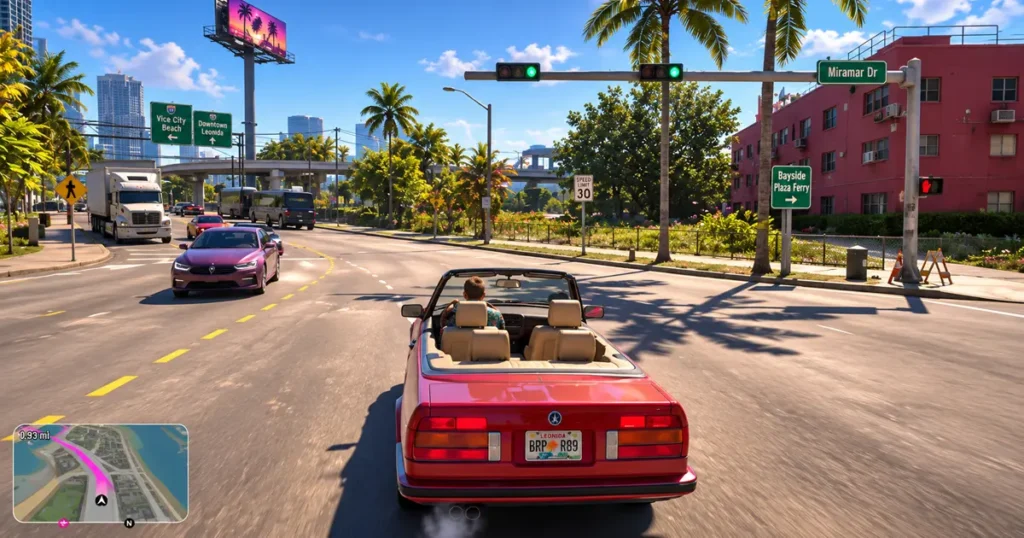
Driving across Leonida can take quite a bit of time, especially when traveling between distant locations. Fortunately, Grand Theft Auto 6 includes an Auto Drive feature that lets Jason and Lucia drive vehicles automatically while players enjoy the scenery.
The feature is accessed through Cinematic Mode. Players simply need to mark a destination on the map, activate the cinematic camera, and enable Auto Drive. Once activated, the character takes control of the vehicle and follows the selected GPS route.
Here’s everything you need to know about using Auto Drive in GTA 6, including its controls, speed settings, and how to enable unrestricted driving.
How to Enable Auto Drive in GTA 6
GTA 6’s Auto Drive feature works through Cinematic Mode. You don’t need a special vehicle, upgrade, or separate driving ability to use it.
Follow these steps to activate automatic driving:
1. Set a Destination on the Map
First, enter a vehicle and open the in-game map. Select the location you want to visit and place a waypoint.
The game needs an active destination to calculate your route. Without a waypoint, the Auto Drive option won’t appear.
2. Start Driving on a Public Road
Get your vehicle onto a public road and start moving. By default, Auto Drive is restricted to suitable road situations.
You can use a car or another supported vehicle to travel toward your selected destination.
3. Activate Cinematic Mode
While driving, hold the Down button on your controller’s D-pad.
Keep holding it and press the Options button on PS5 or the Menu button on Xbox Series X|S. This switches the camera into Cinematic Mode.
The camera will begin showing different angles of your vehicle as it moves through the environment.
4. Turn On Auto Drive
Once Cinematic Mode is active, look for the Enable Auto Drive prompt in the bottom-right corner of the screen.
Hold the corresponding button to activate the feature:
- PS5: Hold Circle (O).
- Xbox Series X|S: Hold B.
Jason or Lucia will now take control of the vehicle and automatically follow the destination marked on your map.
GTA 6 Auto Drive Controls
Here’s a quick look at the Auto Drive controls on PlayStation 5 and Xbox Series X|S.
| Action | PS5 | Xbox |
|---|---|---|
| Set destination | X | A |
| Open camera options | Hold D-pad Down | Hold D-pad Down |
| Enter Cinematic Mode | Options | Menu |
| Enable Auto Drive | Hold Circle | Hold B |
| Increase speed | R2 | RT |
| Reduce speed | L2 | LT |
| Disable Auto Drive | Hold Circle | Hold B |
Button prompts can vary with controller layouts, so check the instructions displayed on your screen.
How to Change Auto Drive Speed in GTA 6
Auto Drive isn’t limited to one fixed speed. The game offers three speed settings that let you adjust how quickly your character travels toward the destination.
You can use the following controls:
- Speed 1: Slow cruising speed.
- Speed 2: Default cruising speed.
- Speed 3: Fastest available Auto Drive setting.
Use R2 on PS5 or RT on Xbox to increase the speed. Press L2 or LT to reduce it.
Keep in mind that even the highest setting doesn’t make Auto Drive as fast as manual driving. Your character generally follows traffic rules, which means stopping at traffic lights and giving other vehicles the right of way.
How to Enable Unrestricted Auto Drive in GTA 6
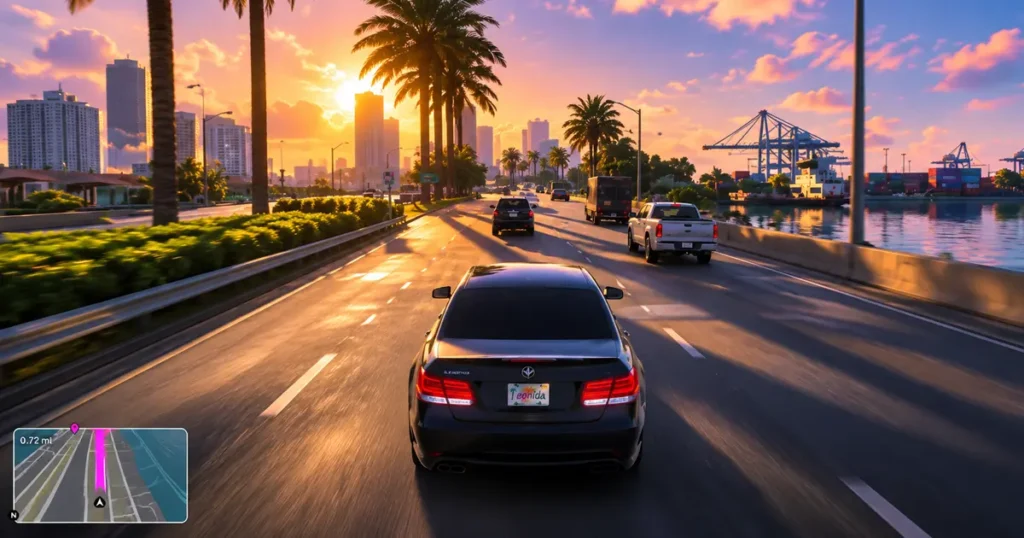
By default, Auto Drive is designed to work on public roads. However, GTA 6 also offers an Unrestricted setting that allows automatic driving outside normal road routes.
Here’s how to enable it:
- Open the Pause Menu.
- Select Settings.
- Go to Gameplay.
- Find the Auto Drive option.
- Change the setting to Unrestricted.
With this option enabled, Auto Drive can take your vehicle beyond regular paved roads.
However, unrestricted driving doesn’t guarantee that the AI will navigate every location perfectly. Difficult terrain and obstacles can still interrupt your journey.
How to Disable Auto Drive in GTA 6
If you want to take control of your vehicle again, you can turn off Auto Drive at any time.
When the Disable Auto Drive prompt appears, hold Circle on PS5 or B on Xbox. You can also leave Cinematic Mode by holding Down on the D-pad.
Once you disable the feature, you’ll regain manual control of the vehicle.
It’s a good idea to switch back to manual driving when approaching busy intersections, dangerous areas, or locations that require precise movement.
Is Auto Drive Worth Using in GTA 6?
Auto Drive is particularly useful for players who want to explore Leonida without constantly controlling their vehicles.
Here are a few situations where the feature comes in handy:
- Long-distance travel: Let Jason or Lucia handle longer journeys across the map.
- Sightseeing: Enjoy the game’s environments and cinematic driving camera.
- Character conversations: Focus on conversations between characters instead of steering.
- Taking screenshots: Capture cinematic views of vehicles and locations.
- Relaxed exploration: Travel through Vice City without constantly accelerating and steering.
However, Auto Drive isn’t a replacement for fast travel. It follows roads and traffic rules, so manual driving is usually quicker.
GTA 6 Auto Drive Not Working? Try These Fixes
If you can’t activate Auto Drive, check these things before trying again.
1. Make sure you have set a waypoint
Auto Drive needs a destination. Open the map and select a location before entering Cinematic Mode.
2. Get onto a public road
The default Restricted setting limits where Auto Drive can operate. Try moving onto a suitable public road.
3. Make sure Cinematic Mode is active
Auto Drive is accessed through Cinematic Mode. Simply changing the camera angle isn’t enough.
4. Check the Auto Drive setting
If you want the feature to work beyond public roads, open Settings > Gameplay and select Unrestricted.
5. Check the on-screen button prompt
Make sure you’re holding the correct button shown on your screen. Different controller layouts may use different inputs.
Final Thoughts
GTA 6’s Auto Drive feature makes exploring Leonida more relaxing. Instead of manually driving everywhere, you can set a destination, activate Cinematic Mode, and let Jason or Lucia handle the journey.
While it isn’t the fastest way to travel, it’s a useful feature for sightseeing, long journeys, and enjoying the game’s cinematic driving experience.
For more GTA 6 guides, hidden features, tips, and the latest gaming news, follow GamerUrge and stay updated on everything happening in Grand Theft Auto 6.