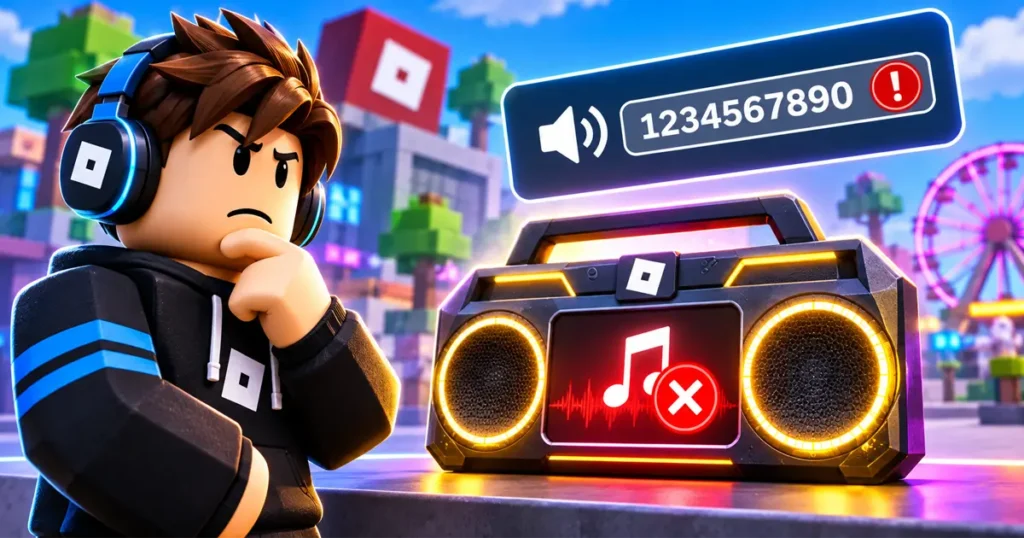
Have you entered a Roblox music ID into a boombox or radio, only to get an error or hear nothing? The problem might not be your music code. Roblox changed how audio permissions work in March 2022, and those changes made many older music IDs unusable in other experiences.
But there’s another important detail: a music ID can still exist without being playable in the game you’re visiting. The experience might not support custom music, or its developer might not have permission to use that particular audio asset.
Instead of trying random codes, you can narrow down the problem with a few simple checks. Here’s how to identify why Roblox music IDs aren’t working, what you can fix yourself, and when the issue is outside your control.
Why Are Roblox Music IDs Not Working?
Roblox uses audio asset IDs to identify uploaded music and sound effects. However, having an ID doesn’t automatically give every experience permission to play that audio.
On March 22, 2022, Roblox introduced major audio privacy changes. Newly uploaded audio became private by default, while many existing audio assets longer than six seconds were also made private. Roblox-owned and partner-provided audio had different access arrangements.
You can learn more about how Roblox handles uploaded audio and access permissions in its official Audio Assets documentation.
This change affected older music codes that players had shared across the internet. Some IDs still exist, but other experiences can’t necessarily access their audio.
Other possible causes include:
- The music asset has been removed or moderated.
- The experience doesn’t support custom music.
- The audio owner hasn’t granted the required permission.
- The ID contains a typing or copying mistake.
- Roblox or your device is experiencing a temporary playback problem.
How to Diagnose Roblox Music ID Problems
Before changing settings, try to identify where the problem is happening.
Use this quick guide:
| What happens? | Most likely cause |
|---|---|
| One ID fails, but other IDs work | Unavailable or restricted audio |
| Every ID fails in one game | Game restrictions or compatibility |
| The same ID works in another game | Different audio permissions |
| Music doesn’t play, but other sounds work | Audio asset or music-player issue |
| No Roblox sounds work | Volume, device, or playback issue |
This distinction matters because each problem requires a different solution.

7 Ways to Fix Roblox Music IDs Not Working
1. Check Whether the Music ID Is Still Valid
Start with the simplest solution. The music ID you’re using might no longer point to an available audio asset.
Many websites still publish old Roblox music codes without checking whether they work. A code that played a song several years ago might now lead to restricted or unavailable audio.
Try these steps:
- Copy the music ID again from its original source.
- Remove any extra spaces or characters.
- Enter only the numeric ID if the game’s music player requests a number.
- Try another music ID provided by the game’s developer or listed in the experience’s official instructions.
- Avoid relying on old music code lists.
If several different IDs fail in the same experience, the problem might be related to the game rather than the codes.
Also read: Roblox Music Codes November 2026: 140+ Working Song IDs
2. Check Whether the Game Supports Custom Music
Not every Roblox experience supports custom music IDs.
Some games include a boombox, radio, DJ booth, or vehicle stereo. Others only allow players to listen to music selected by the developer.
Even if you own a boombox item, the experience might restrict which audio tracks you can play.
Here’s what you can do:
- Check whether the game has a working music input.
- Look for instructions from the game’s developer.
- Test the same ID in another experience that supports custom audio.
- Check whether the game requires a specific item or game pass.
- Use the built-in music options if custom IDs aren’t supported.
Remember, there isn’t one universal boombox system across Roblox. Each experience can handle music differently.
3. Understand Roblox’s Audio Privacy Changes
This is one of the biggest reasons older Roblox music IDs stopped working.
Roblox’s March 22, 2022, audio privacy changes made newly uploaded audio private by default and affected existing audio longer than six seconds. However, audio from Roblox’s official licensed catalog and its music and sound-effect partners remained publicly accessible. These changes meant that many older user-uploaded music IDs could no longer be played freely across different experiences.
This means an old music ID might still exist but won’t necessarily play in another developer’s game.
For players, there’s usually no setting that can bypass these restrictions. You’ll need to find an audio asset that’s available to the experience you’re playing.
For developers, Roblox provides an asset permission system that lets creators grant specific experiences access to private audio. Check the official Roblox Audio Assets guide for details.
4. Check Roblox Audio Permissions (For Creators)
If you’re developing a Roblox experience and your own audio isn’t playing, check its permissions.
Roblox automatically protects private audio assets from unauthorized access. Uploading an audio file doesn’t automatically make it available to every experience.
Follow these steps:
- Open Roblox Creator Dashboard.
- Select Development Items.
- Choose Audio.
- Select your audio asset.
- Open Permissions in the asset’s left navigation.
- Select the Experiences tab.
- Click Add experiences and enter the game’s Universe ID.
- Click Add and save the permission changes.
If you’re using group-owned audio, make sure you have the required group permissions.
Simply knowing an audio ID doesn’t mean your experience has permission to play it.
5. Find Replacement Audio in the Roblox Creator Store
If an audio asset has been removed or is no longer accessible, replacing it is often the best solution.
Roblox’s Creator Store includes a large collection of audio assets, including music tracks and sound effects from Roblox and its audio partners.
Here’s how creators can find replacement audio:
- Open Roblox Studio.
- Select Toolbox.
- Open the Creator Store tab.
- Choose Audio from the category selector.
- Search for the type of music or sound effect you need.
- Right-click an audio asset and select Copy Asset ID.
You can then use the asset in your Roblox experience with the appropriate audio playback system and permissions.
Important: Creator Store assets are intended for creators building experiences. Finding an asset there doesn’t automatically make it playable through a player’s boombox in every game.
6. Check Your Roblox and Device Volume Settings
If the music ID appears to work but you can’t hear anything, check your sound settings.
Your device or Roblox might have muted the audio.
Try these solutions:
- Open the in-game Roblox menu.
- Check the available volume settings.
- Make sure your device isn’t muted.
- Check your Windows or mobile media volume.
- Disconnect Bluetooth headphones and test your speakers.
- Check whether the experience has separate music and sound-effect controls.
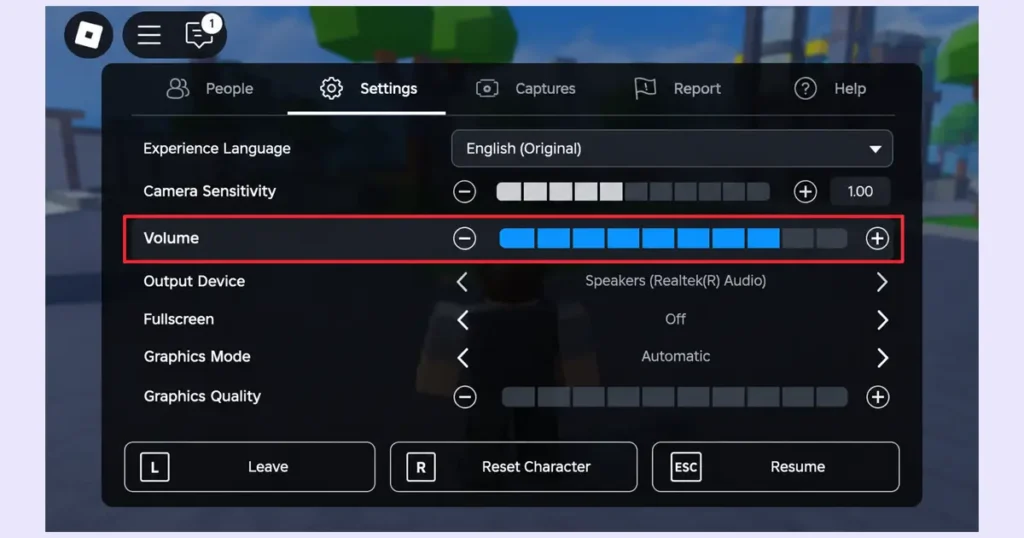
If other sounds play normally but one particular music ID doesn’t, the problem is more likely related to that audio asset.
7. Restart Roblox and Join Another Server
Temporary loading or connection problems can sometimes affect audio playback.
If you’ve checked the music ID, game compatibility, and volume settings, try restarting Roblox.
Follow these steps:
- Leave your current Roblox experience.
- Close Roblox completely.
- Reopen Roblox and join the experience again.
- Enter the music ID once more.
- Join another server if the problem continues.
You can also test whether other audio features work in the same experience.
If the same ID fails across multiple servers but other sounds work, the audio asset or its permissions are more likely to be the problem.
Also read: Roblox Game Codes: All Active Code
A Realistic Example: How to Identify the Problem
Imagine you’ve entered a music ID into a Roblox boombox, but nothing plays.
Instead of immediately searching for another code, run these checks:
Test 1: Enter a different music ID in the same game.
If it works, the original audio is likely unavailable or restricted.
Test 2: Try the original ID in another experience that supports custom music.
If it works there, the issue may be specific to the first game’s audio support or permissions.
Test 3: Check whether other game sounds work.
If they do, your device’s general audio settings are less likely to be the cause.
These tests won’t reveal every possible technical issue, but they’ll help you avoid wasting time on fixes that don’t address the actual problem.
What Roblox Players Cannot Fix Themselves
Some audio problems aren’t under a player’s control.
You generally cannot:
- Grant your account permission to use another creator’s private audio.
- Restore an audio asset that Roblox has removed.
- Force a game to support custom music IDs.
- Bypass the experience’s audio restrictions.
- Make an unavailable music asset playable by repeatedly entering its ID.
If you encounter one of these situations, look for an alternative track or contact the experience’s developer.
Roblox Music IDs Still Not Working? Quick Troubleshooting Guide
Use this table to identify the likely cause and the next step.
| Problem | Possible cause | What to try |
|---|---|---|
| One music ID doesn’t work | Unavailable audio | Find another ID |
| All IDs fail in one game | Game restrictions | Check custom music support |
| Music works in one game but not another | Permission restrictions | Check experience access |
| Music plays but there’s no sound | Volume settings | Check device and game volume |
| Music suddenly stopped working | Audio privacy or moderation | Find replacement audio |
| Creator’s audio won’t load | Missing permissions | Review Creator Dashboard |
Frequently Asked Questions
Why do old Roblox music IDs stop working?
Roblox’s March 2022 audio privacy changes affected many older audio assets. Some became private, meaning other experiences could no longer use them without permission.
Can I use any Roblox music ID in any game?
No. The experience must support custom music playback, and the audio asset must be accessible to that experience.
Why does my Roblox boombox say invalid ID?
The ID might be incorrect, unavailable, restricted, or unsupported by the game’s music system. Try another ID and check the experience’s restrictions.
Can I make a private Roblox audio ID public?
Only the asset owner or someone with the required permissions can manage its access settings. Players cannot change another creator’s audio permissions.
How do I find usable Roblox audio?
Creators can browse the Audio category in Roblox Studio’s Creator Store and check the permissions before using an asset.
Can I fix a deleted Roblox music ID?
No. If Roblox has removed an audio asset, players cannot restore it. You’ll need to find an available replacement.
Conclusion
Roblox music IDs don’t always fail because of a simple typing mistake. Audio privacy restrictions, missing permissions, and game-specific limitations can all prevent music from playing.
The best approach is to identify the problem first. Test another ID, check whether the experience supports custom music, and make sure your device audio works. If you’re a developer, review your audio permissions and look for authorized replacement assets.
Most importantly, remember that a music ID isn’t a guarantee that a song will play in every Roblox experience.
Follow GamerUrge for more Roblox guides, working game codes, gaming news, and troubleshooting tips.