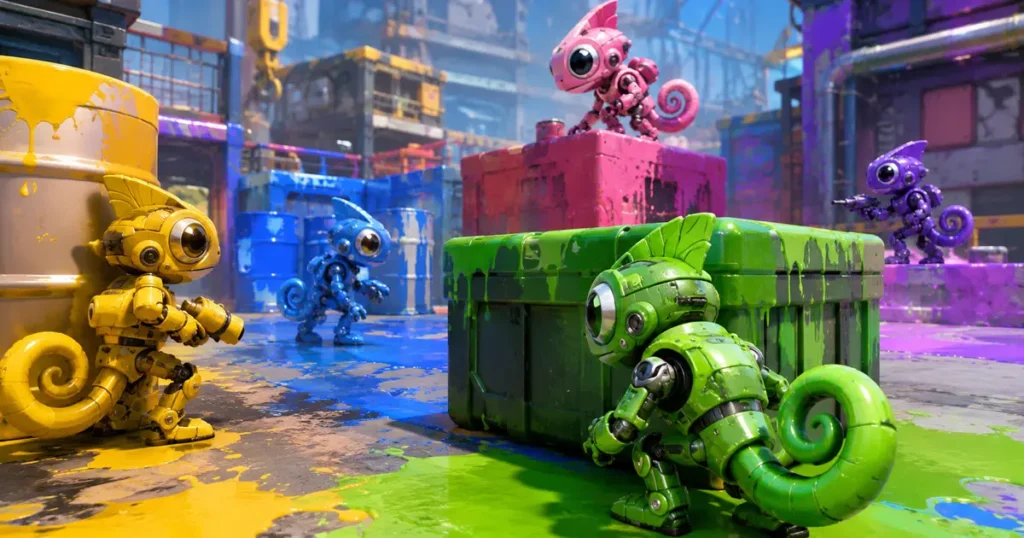

Meccha Chameleon has already crossed 5 million copies sold, but the multiplayer setup is far from beginner friendly. There is no party system and no simple invite button that drops your whole squad into one match. If your friends keep ending up in different lobbies, here is the setup that consistently works.
Why You Keep Getting Split Up
Meccha Chameleon does not have a queue or party feature yet. Players in the Steam discussions have pointed this out repeatedly since launch. Without a shared queue, the only reliable way to land in the same lobby is for one person to host a server and for everyone else to search for it by name.
Public matchmaking alone will not guarantee you end up with your friends, even if you all hit search at the same time.
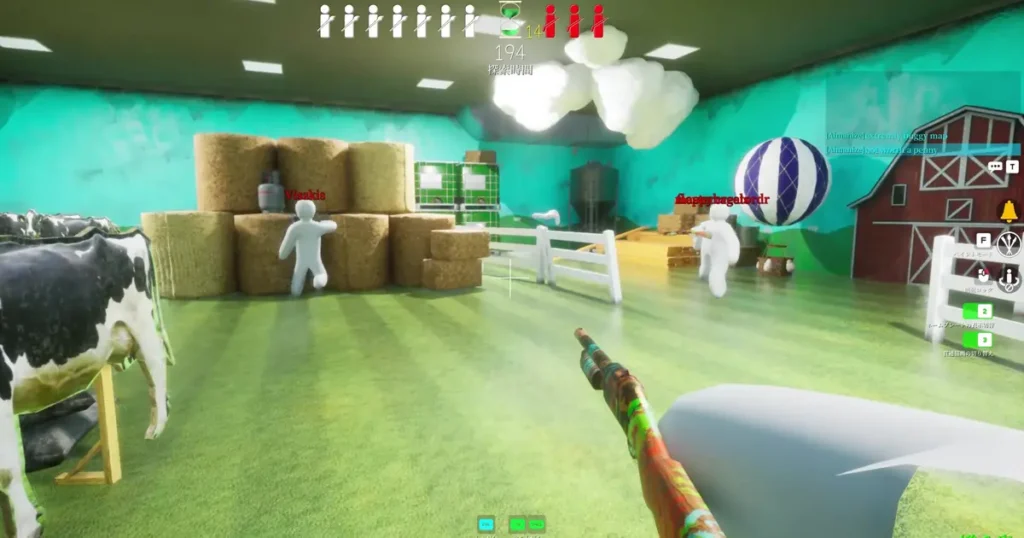
Step 1: Have One Player Host the Server
Pick one person in your group to be the host. From the main menu:
- Click Start, then select Create Server.
- Type a server name your friends will recognize. Avoid generic names like “room” or “test,” since the server list fills up fast.
- Set a password if you want the lobby private. Leaving it blank makes the room public, which means random players can join too.
- Choose the region closest to your group. A region mismatch is one of the most common reasons friends cannot find a room.
- Set your max player count, then hit Create Server.
Step 2: Friends Join Through Search Server
Once the lobby is live, send the exact server name, password, and region to everyone in your group. Each friend should:
- Click Start, then Search Server.
- Enter the server name and password exactly as the host typed them. Capitalization and spacing matter.
- Confirm the region matches the host’s selection.
- Hit Search and join once the room appears.
If someone wants to join a fully open lobby instead, they can use Search Public Servers from the same menu and pick any room from the list.
Use the Steam Overlay as a Backup
Once you are inside a lobby, press Shift + Tab to open the Steam overlay and send Steam invites directly to friends already in your friends list. This does not always work as the primary join method, but it is a fast backup once one person is already in.
Room Not Showing Up? Check These First
Most “I can’t find the server” problems come down to a small mismatch, not a broken game. Before assuming something is wrong, check:
- Password typos. This is the single most common issue. Copy and paste it if possible.
- Region setting. Everyone needs to be searching the same region as the host.
- Game version. If the host updated and friends have not, the room may not appear. Restart Steam and let any pending update finish.
- VPN or proxy. These can interfere with server discovery for some players.
If the room still will not show up, the fastest fix is recreating it with a short, simple name and trying again rather than digging into router settings.
How Many Friends Can Join Together
Meccha Chameleon technically supports up to 24 players in one lobby, but performance depends heavily on the host’s connection. The Steam page itself recommends 2 to 10 players, and most groups get the best mix of chaos and readability somewhere in the 5 to 12 range.
Is There Crossplay?
No. Meccha Chameleon is currently Steam-only on PC, so there is no PlayStation, Xbox, Switch, or mobile version to connect with. Everyone in your group needs to own it on Steam. Steam Deck players can join normally since it still runs the PC version.
Quick Recap
- One friend hosts a private server with a unique name and password.
- Everyone else joins through Search Server using the exact same details.
- Match your region and game version before troubleshooting anything else.
- Use Steam invites as a backup once someone is already inside.
Once you’re in, the real challenge starts: actually disguising yourself well enough that your friends walk right past you.
Looking for a head start? Check out our guide to the best hiding spots and painting tricks in Meccha Chameleon before your next match.