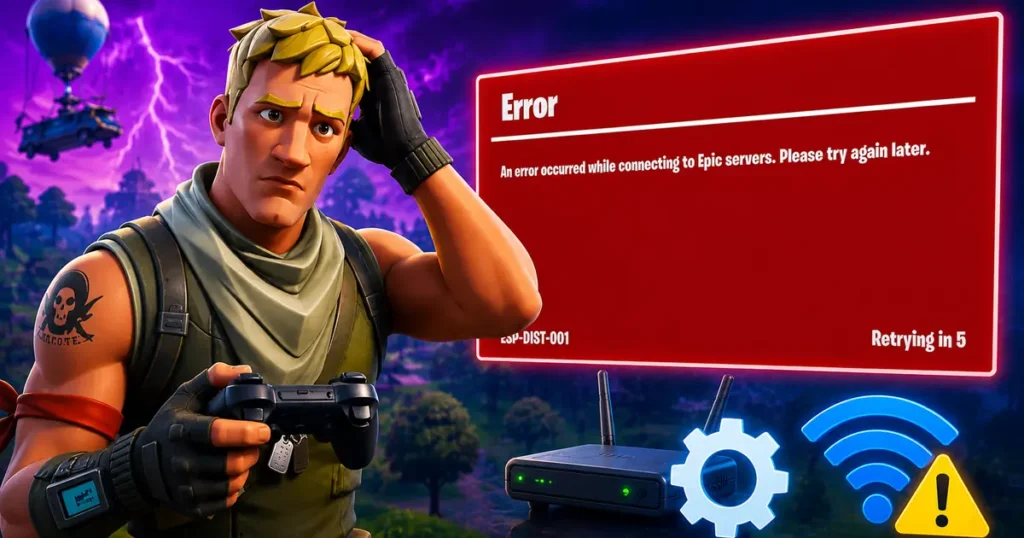
Nothing ruins a Fortnite session faster than launching the game and getting hit with an error message before you can even drop into a match. One of the most frustrating issues players regularly encounter is the Fortnite ESP-DIST-001 error, especially on consoles.
The good news is that this error is usually easy to fix and often does not require reinstalling the game. Here’s everything you need to know about the Fortnite ESP-DIST-001 error and how to get back into the action.
What Is the Fortnite ESP-DIST-001 Error?
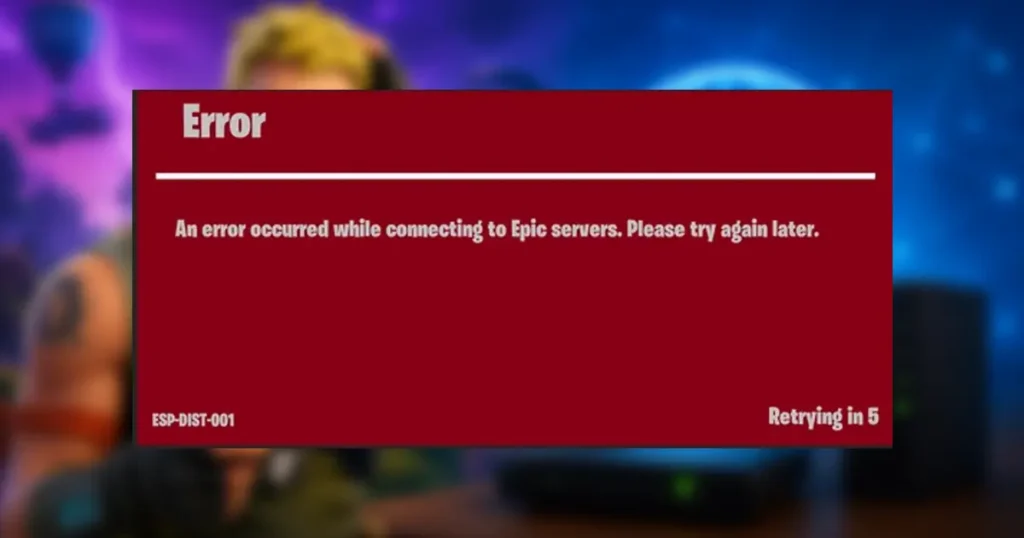
The ESP-DIST-001 error is a network connectivity and handshake issue in Fortnite. Similar to Matchmaking Error #1, this error occurs when communication between your gaming device and Epic Games’ servers breaks down.
When Fortnite launches, it performs several checks in the background. The game verifies your login credentials, retrieves account information, and syncs your inventory, including skins, cosmetics, and V-Bucks.
If your console has corrupted temporary cache data or your network cannot establish a proper connection with Epic’s servers, Fortnite may display the ESP-DIST-001 error and prevent you from logging in.
Since the issue is commonly linked to corrupted local files or network-related problems, most players can fix it without downloading the game again.
Also read: 2026 Upcoming Video Games Release Schedule
Clear Your Console Cache
One of the most common causes of the ESP-DIST-001 error is corrupted cache data stored on your console. Clearing the cache allows Fortnite to refresh temporary login information without affecting your account progress, Battle Pass, skins, or locker items.
Nintendo Switch
If you play Fortnite on Nintendo Switch, follow these steps:
- Open System Settings from the Nintendo Switch Home screen.
- Scroll down and select System.
- Choose Formatting Options.
- Select Reset Cache at the top of the menu.
- Choose the user profile you use for Fortnite and confirm the reset.
- Hold the Power Button for three seconds.
- Select Power Options and then Restart.
Once your Switch restarts, launch Fortnite and check whether the issue has been resolved.
PlayStation and Xbox
For PlayStation and Xbox players, clearing the cache is a simple process:
- Completely shut down your console.
- Make sure the console is not in Rest Mode or Sleep Mode.
- Unplug the power cable from the back of the console.
- Wait approximately 60 seconds.
- Plug the power cable back in.
- Turn on your console and launch Fortnite.
This process helps clear temporary cache files that may be interfering with the game’s connection to Epic’s servers.
Check Epic Games Server Status
Before troubleshooting your hardware or network, it’s worth checking whether the problem is actually on Epic Games’ side.
Occasionally, Fortnite servers or Epic Online Services experience outages, maintenance periods, or degraded performance. When this happens, players can receive various ESP-related errors, including ESP-DIST-001.
If server issues are affecting Fortnite, the best option is to wait until Epic Games resolves the problem.
Power Cycle Your Internet Router
If Epic’s servers are working normally and clearing your console cache didn’t help, the issue may be related to your home network.
Routers can sometimes experience DNS conflicts or temporary IP-related glitches that affect online games.
To power cycle your router:
- Unplug both your modem and router.
- Leave them disconnected for at least 30 seconds.
- Plug them back in.
- Wait until all connection lights return to normal.
- Restart your console and launch Fortnite.
This simple reset often resolves connection issues that prevent Fortnite from communicating properly with Epic’s servers.
Frequently Asked Questions
Q. What does the ESP-DIST-001 error mean in Fortnite?
Q. Is the ESP-DIST-001 error related to a ban?
Final Thoughts
The Fortnite ESP-DIST-001 error can be frustrating, but in most cases, it can be fixed within a few minutes. Clearing your console cache, checking Epic Games server status, and restarting your network equipment are usually enough to solve the problem.
If you’ve encountered another solution that worked for you, share it with fellow players in the comments. Also, be sure to bookmark our Fortnite guides for more troubleshooting tips, updates, and the latest game news.